Website enquiries
What to Put on a Business Website Contact Page
Make it easier for customers to enquire with clear contact details, a short form, honest response times and a simple mobile experience. This guide offers a practical starting point; adapt the details to the way your business works.
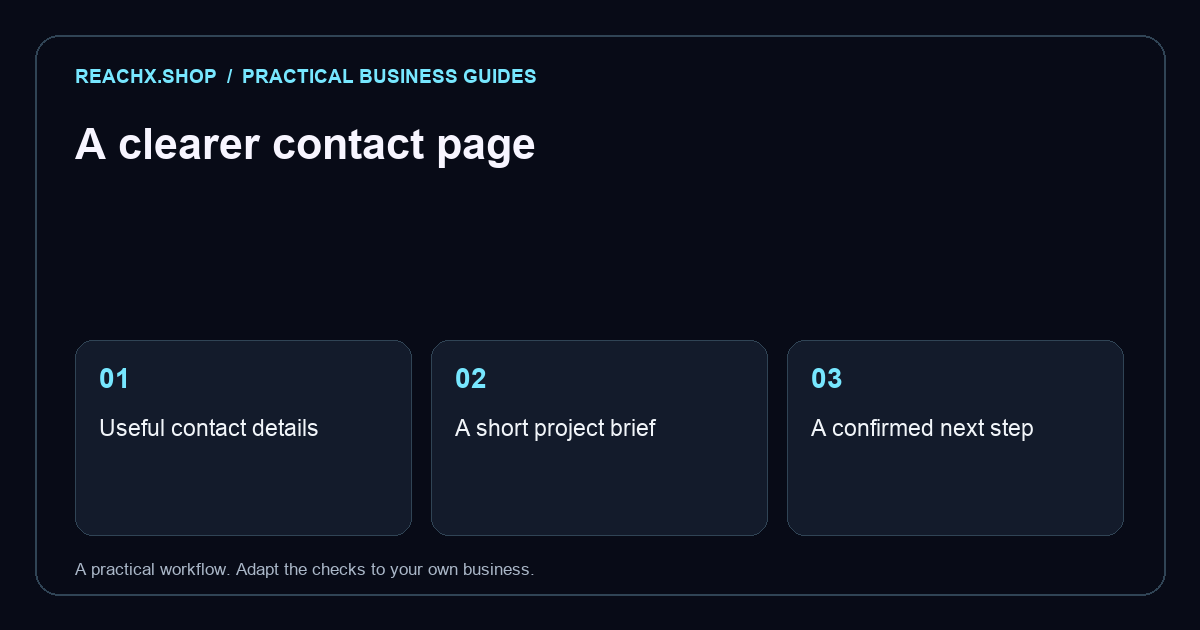
Start with the contact details people need
A customer who reaches your contact page usually has a practical question: how do I speak to someone, ask for a quote or check whether this business can help me? Put a working email address, business phone number where available and your preferred contact method near the top. Use details that your team actually monitors.
If customers visit your premises, explain the address, visiting hours and whether they need an appointment. If you work remotely or travel to customers, describe that arrangement honestly. Do not add an office address just to make the business appear larger.
Ask only what you need for the first reply
A first enquiry rarely needs a long questionnaire. A name, reply address and short description of the requirement can be enough. Ask for a phone number only if calling is part of your process. Mark optional questions clearly and explain why you need any unusual information.
For example, a website agency might ask: “What does your business do?” and “Do you already have a website?” A detailed brief can follow after the first conversation. This is a suggested starting point, not a rule that fits every business. A quotation for a complex installation may need different details.
Explain what happens after an enquiry
Tell the visitor who will reply and what the next step usually involves. Give a response window only if you can consistently meet it. If you answer messages during working hours, say so. Avoid promising instant replies when one person handles enquiries between other tasks.
Make the button describe the action: “Send enquiry” or “Request a callback” is clearer than “Submit”. If the button opens an email application rather than sending a form, explain that before the visitor clicks. After a successful form submission, show a clear confirmation and a backup contact method.
Test the page like a customer
Open the page on a phone and send a real test enquiry. Check that labels remain visible, the keyboard suits the field and error messages explain how to fix a problem. Try the email and phone links. A form that looks finished but sends nowhere is more damaging than a short page with a reliable email link.
Also test keyboard navigation and whether you can understand the page without relying on colours or icons. If you include a map or another embedded tool, make sure the written address remains available when the embed fails.
Give incoming enquiries an owner
Choose who checks the inbox and who covers absences. Keep a simple record of the date, requirement and next follow-up. Collect only information you need and describe your handling of personal information in a suitable privacy notice. Do not request passwords, payment details or sensitive documents in a general contact form.
Review a few real enquiries after launch. If people repeatedly ask the same question, improve the service page or the explanation beside the form. For a clearer journey from service to enquiry, explore Reach X’s lead generation services and our service business website example. A useful contact page starts a manageable conversation; it does not need to promise more than the business can deliver.